ECS Fargate
🎯 Mục tiêu
Chạy backend NestJS monolithic trên môi trường serverless container mà không cần quản lý EC2 instances. Backend service chứa tất cả modules (Users, Products, Orders, Cart, Payment) sẽ được triển khai và quản lý hoàn toàn tự động trong private subnets của VPC.
Kiến trúc
Frontend (Next.js) → API Gateway → ECS Fargate (NestJS Backend) → DynamoDB
🔑 Các bước triển khai
1. Tạo ECS Cluster
1.1. Truy cập ECS Console
- Access ECS Console:
- Vào AWS Console → Search “Elastic Container Service”
- Region: ap-southeast-1
- Click vào Amazon ECS
CLI Alternative:
# Verify ECS CLI setup
aws ecs list-clusters --region ap-southeast-1

# Check available ECS services
aws ecs describe-clusters --region ap-southeast-1
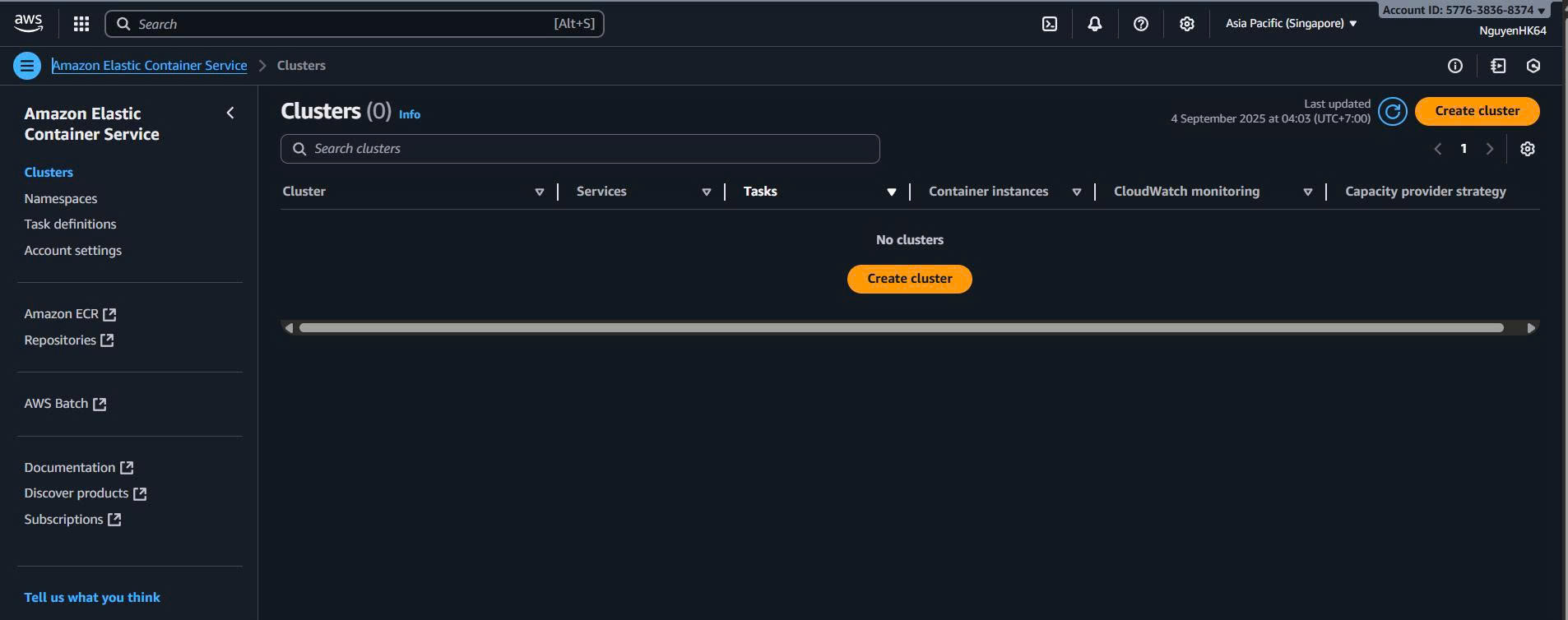
1.2. Create Cluster
- Navigate to Clusters:
- Từ ECS Console sidebar → Click “Clusters”
- Click “Create cluster” (orange button)
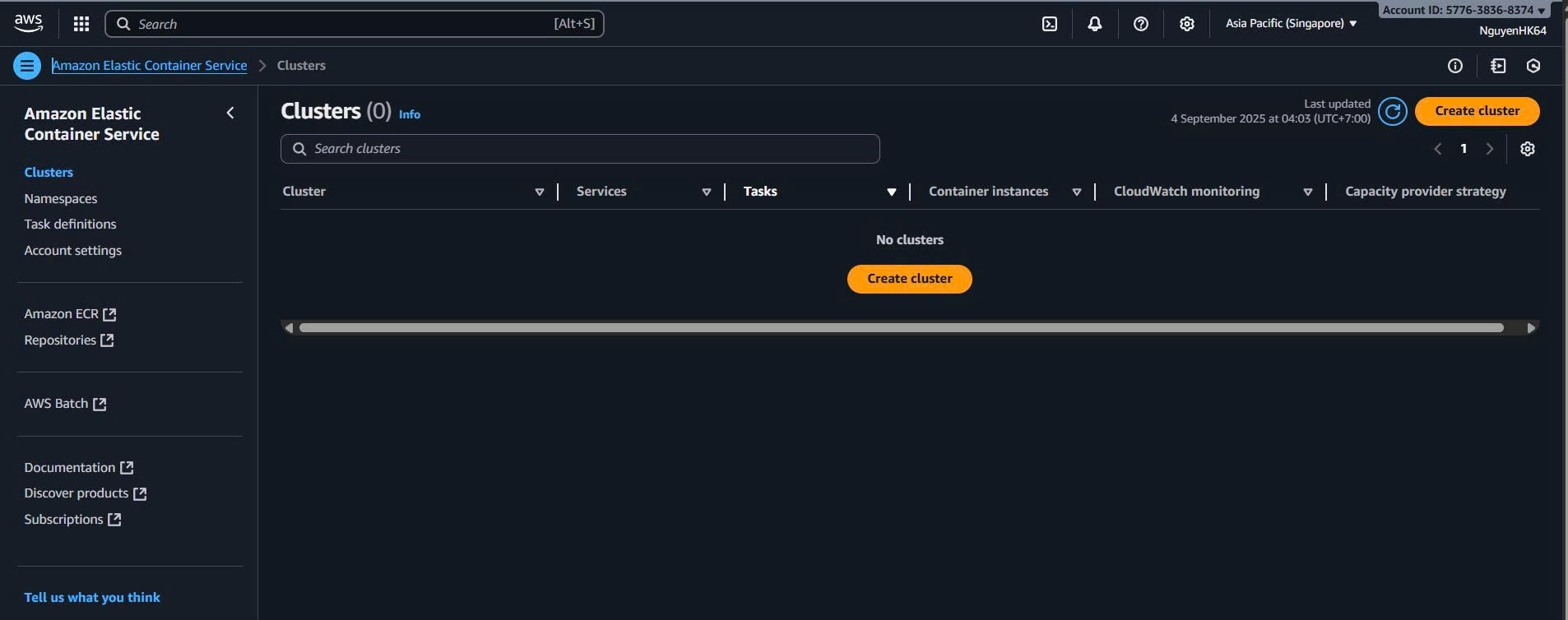
- Cluster Configuration (New UI):
- Cluster name:
vinashoes-cluster - Infrastructure:
- ☑️ AWS Fargate (serverless)
- ☐ Amazon EC2 instances
- Monitoring: ☑️ Use Container Insights
- Cluster name:
CLI Alternative:
# Create ECS cluster
aws ecs create-cluster \
    --cluster-name vinashoes-cluster \
    --configuration executeCommandConfiguration='{logging=OVERRIDE,logConfiguration={cloudWatchLogGroupName="/aws/ecs/containerinsights/vinashoes-cluster/performance"}}' \
    --region ap-southeast-1

# Verify cluster creation
aws ecs describe-clusters \
    --clusters vinashoes-cluster \
    --include ATTACHMENTS \
    --region ap-southeast-1
2. Tạo Task Definition
2.1. Create Task Definition for Backend Service
- Access Task Definitions:
- Từ ECS Console sidebar → Click “Task definitions”
- Click “Create new task definition” (orange button)

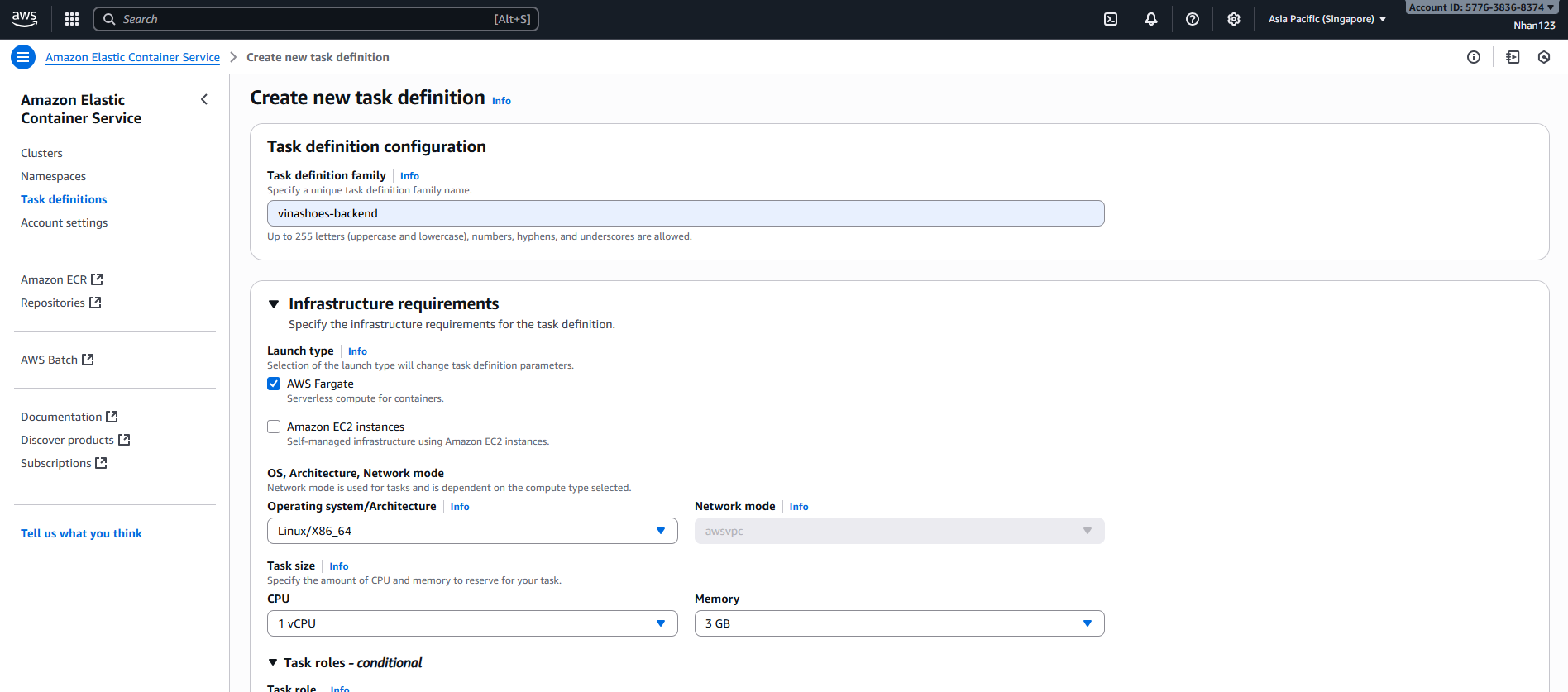
2.2. Configure Task Definition (New UI)
-
Task definition configuration:
- Task definition family:
vinashoes-backend-task
- Task definition family:
-
Infrastructure requirements:
- Launch type: ☑️ AWS Fargate (Serverless compute for containers)
- ☐ Amazon EC2 instances (Self-managed infrastructure using Amazon EC2 instances)
-
OS, Architecture, Network mode:
- Operating system/Architecture: Linux/X86_64
- Network mode: awsvpc (tự động chọn cho Fargate)
-
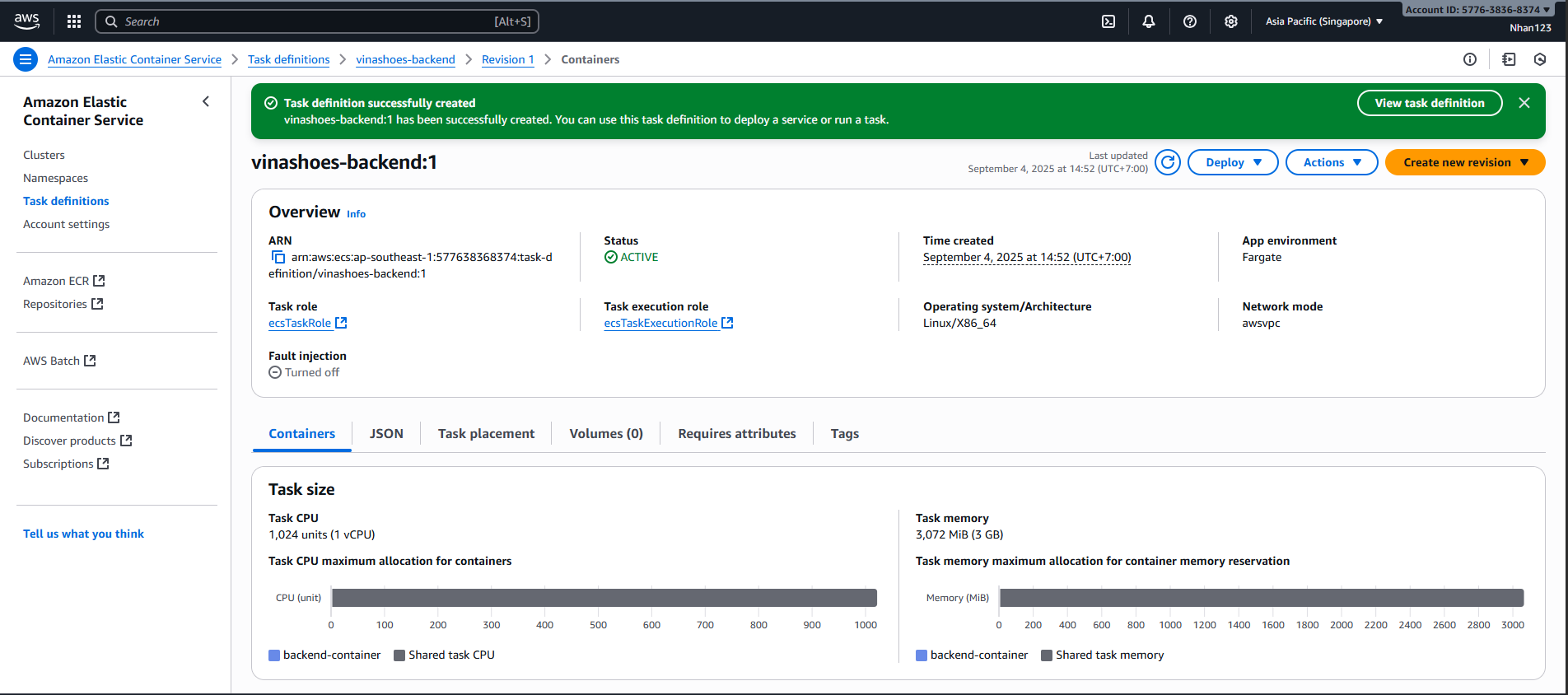
Task size:
- CPU: 1 vCPU
- Memory: 3 GB
Lưu ý về Task Size:
- UI mới hiển thị dropdown với các tùy chọn: 0.25 vCPU, 0.5 vCPU, 1 vCPU, 2 vCPU, 4 vCPU
- Memory tùy thuộc vào CPU: với 1 vCPU có thể chọn từ 2GB đến 8GB
- Để demo, chọn 1 vCPU + 3GB để có đủ resources
- Task roles (optional):
- Task role:
ecsTaskRole(nếu đã tạo) - Task execution role:
ecsTaskExecutionRole(bắt buộc cho Fargate)
- Task role:
2.3. Add Container Definition
-
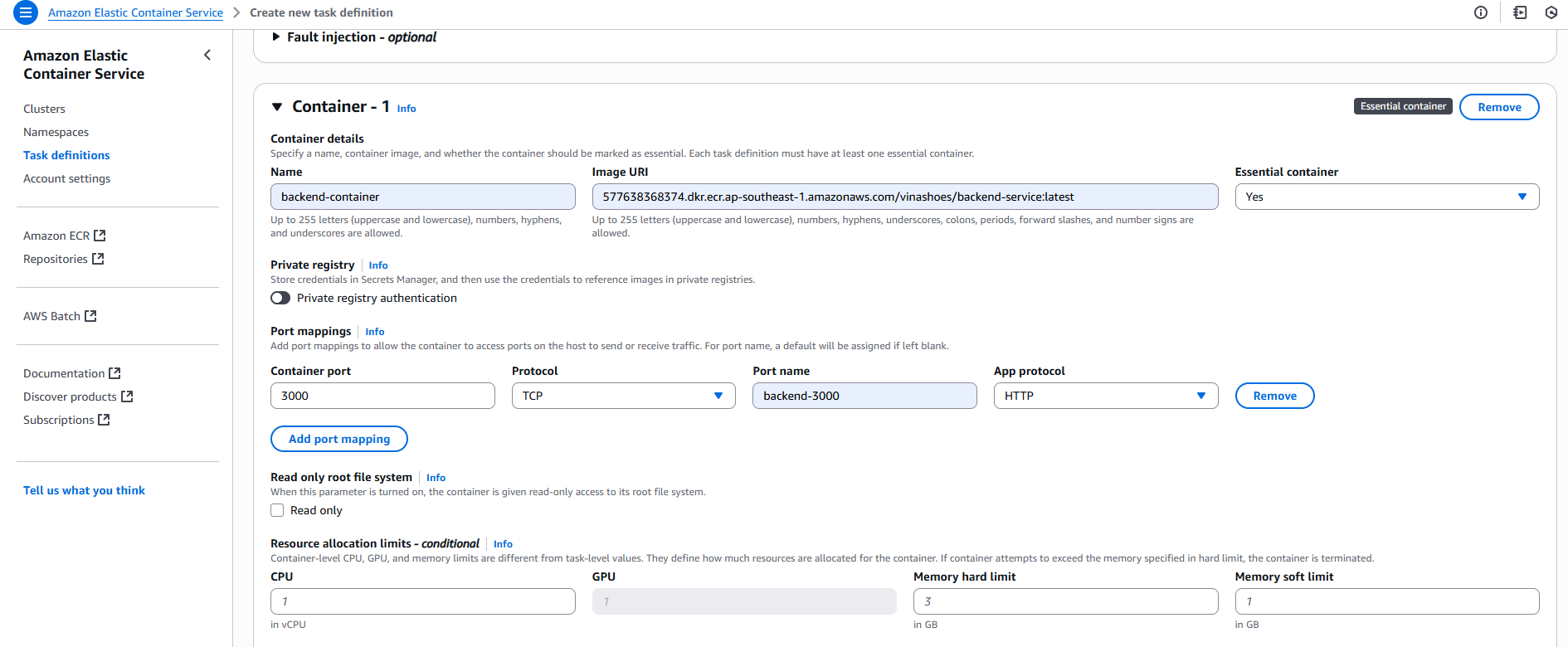
Container - 1:
- Container name:
backend-container - Image URI:
<account-id>.dkr.ecr.ap-southeast-1.amazonaws.com/vinashoes/backend-service:latest - Essential container: Yes (default)
- Container name:
-
Private registry authentication:
- ☐ Private registry authentication (bỏ trống cho ECR)
-
Port mappings:
- Container port:
3000 - Protocol: TCP
- Port name:
backend-3000(optional) - App protocol: HTTP
- Container port:
-
Resource allocation limits (optional):
- CPU:
1(in vCPU) - GPU: (để trống)
- Memory hard limit:
3(in GB) - Memory soft limit:
1(in GB)
- CPU:
-
Environment variables (optional):
- Click “Add environment variable”
Database Configuration:
MONGODB_URI= ``JWT_SECRET= ``PORT= ``
Email Configuration:
EMAIL_MAILER= ``EMAIL_HOST= ``EMAIL_USER= ``EMAIL_PASS= ``EMAIL_PORT= ``EMAIL_ENCRYPTION= ``EMAIL_FROM= ``
Stripe Configuration:
NEXT_PUBLIC_STRIPE_PUBLISHABLE_KEY= ``STRIPE_SECRET_KEY= ``
Application Environment:
NODE_ENV=production
🔒 Security Best Practice:
- Trong production, sử dụng AWS Secrets Manager hoặc Systems Manager Parameter Store thay vì hardcode sensitive data
- Không commit credentials vào source code
- Rotate secrets thường xuyên
- Logging (optional):
- ☑️ Use log collection
- Log driver: Amazon CloudWatch
- Configuration:
- awslogs-group:
/ecs/vinashoes-backend-task - awslogs-region:
ap-southeast-1 - awslogs-stream-prefix:
ecs - awslogs-create-group:
true(để auto-create log group)
- awslogs-group:
Auto-create CloudWatch Log Group: UI mới có option awslogs-create-group: true để tự động tạo log group, không cần tạo manual trước.
- HealthCheck (Quan trọng để tránh Unknown status):
- Command:
CMD-SHELL,curl -f http://localhost:3000/health || exit 1 - Interval:
30seconds - Timeout:
5seconds - Retries:
3 - Start period:
60seconds
- Command:
🏥 Health Check Configuration: Để tránh “Unknown” health status, cần configure health check trong container definition:
- Backend NestJS cần có
/healthendpoint - Health check command kiểm tra container có response không
- Nếu không config, ECS không biết container có healthy hay không
-
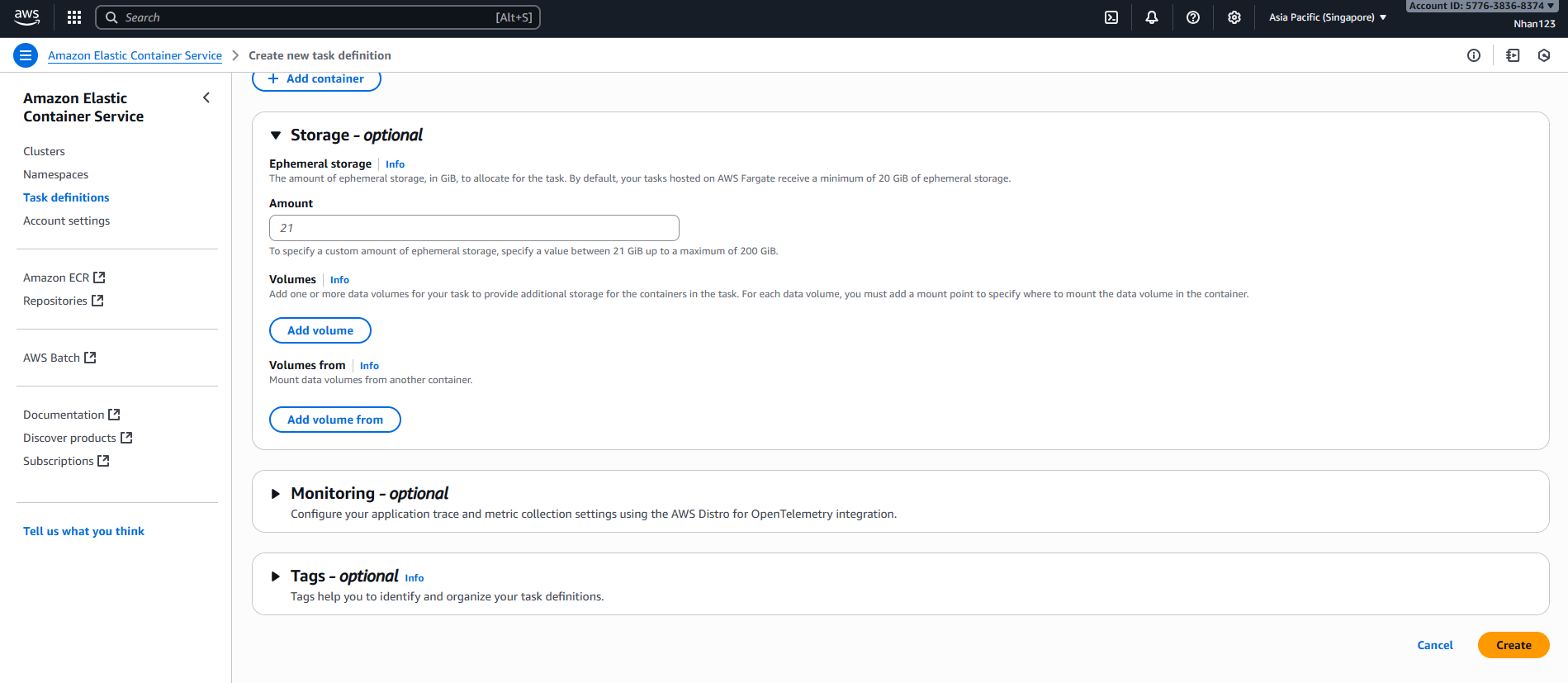
Storage (optional):
- Ephemeral storage:
21GB (default minimum) - Volumes: (có thể bỏ trống cho đơn giản)
- Ephemeral storage:
-
Monitoring (optional):
- AWS Distro for OpenTelemetry integration (có thể bỏ trống)
-
Tags (optional):
- Có thể thêm tags để organize resources
-
Click “Create” để tạo task definition
⚠️ Quan trọng:
- Đảm bảo IAM roles (
ecsTaskExecutionRole) đã được tạo trước - ECR image URI phải chính xác với image đã push trong Task 8
- Log group sẽ được tự động tạo nếu chọn
awslogs-create-group: true - MongoDB Connection: Đảm bảo ECS tasks có internet access để connect tới MongoDB Atlas
- Email SMTP: Verify Gmail App Password đã được enable
🔐 Production Security:
# Create secrets in AWS Secrets Manager
aws secretsmanager create-secret \
    --name "vinashoes/mongodb" \
    --description "MongoDB connection string" \
    --secret-string "mongodb+srv://username:[email protected]/database" \
    --region ap-southeast-1

aws secretsmanager create-secret \
    --name "vinashoes/stripe" \
    --description "Stripe API keys" \
    --secret-string '{"publishable":"pk_test_...","secret":"sk_test_..."}' \
    --region ap-southeast-1

# Reference secrets trong task definition
"secrets": [
    {
        "name": "MONGODB_URI",
        "valueFrom": "arn:aws:secretsmanager:ap-southeast-1:account:secret:vinashoes/mongodb"
    }
]
3. Tạo ECS Service
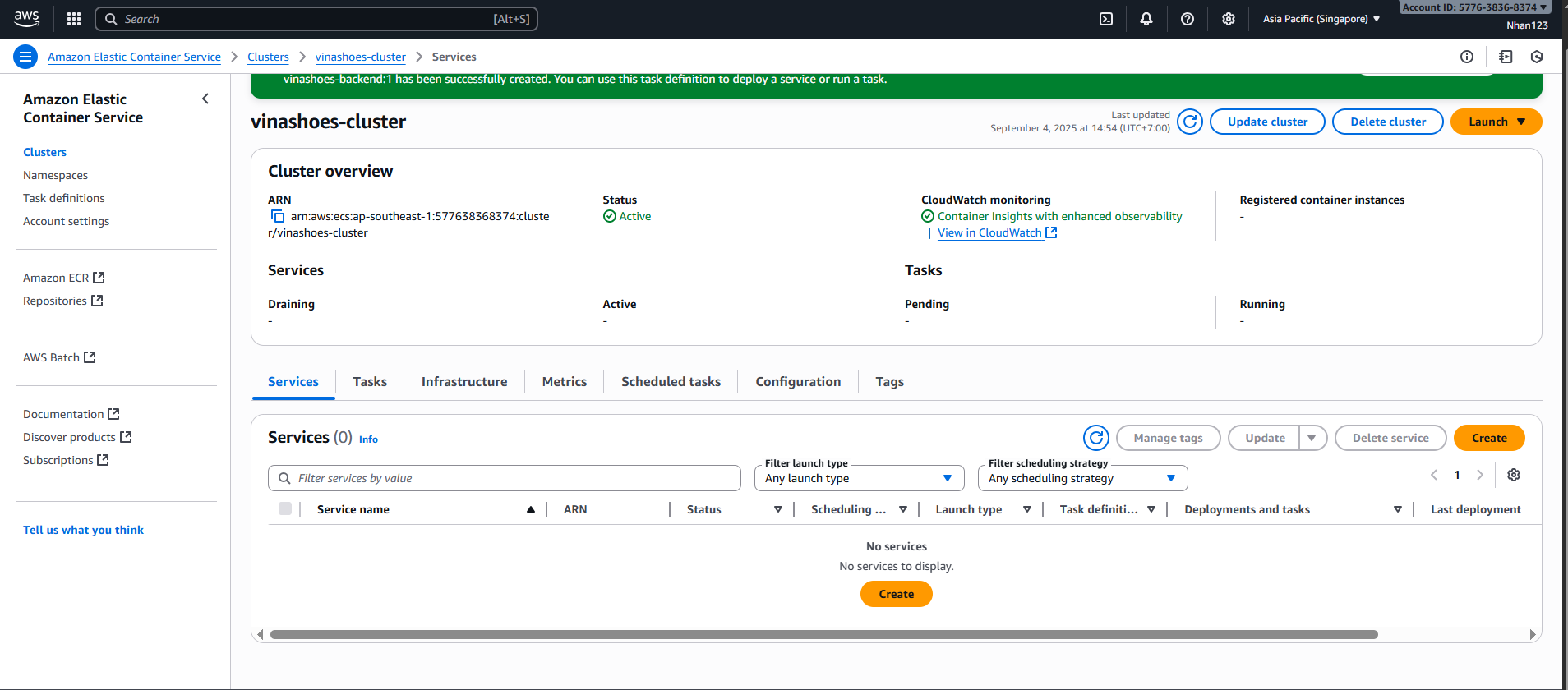
3.1. Create Service for Backend
- Access Services:
- Vào cluster
vinashoes-cluster - Tab “Services” → Click “Create” (orange button)
- Vào cluster
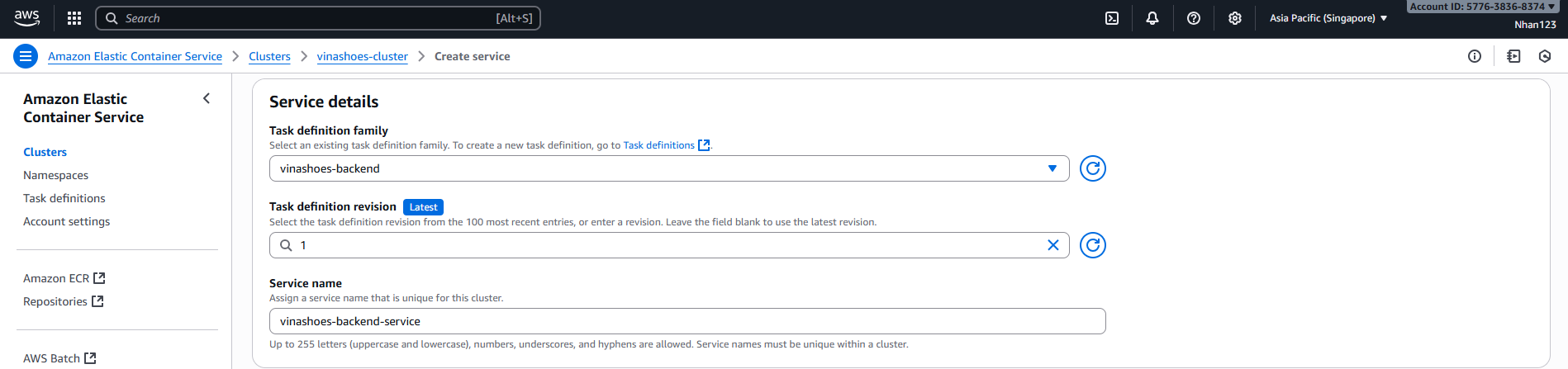
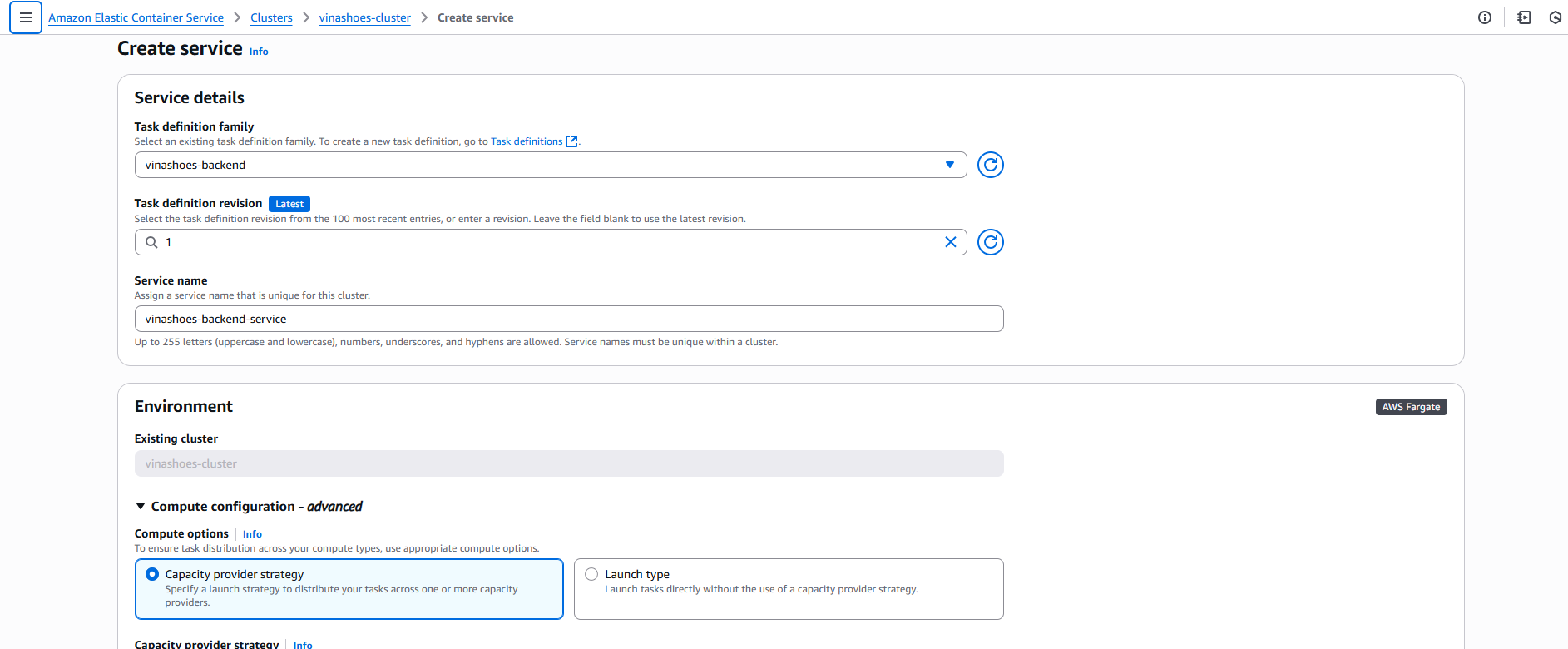
3.2. Service Details (New UI)
-
Task definition family:
- Chọn dropdown → vinashoes-backend (task definition đã tạo trước đó)
-
Task definition revision:
- 1 (hoặc để Latest để luôn dùng phiên bản mới nhất)
-
Service name:
- vinashoes-backend-service
3.3. Environment Configuration
-
Existing cluster:
- vinashoes-cluster (đã được chọn sẵn)
-
Compute configuration - advanced:
Option 1: Capacity provider strategy (Recommended):
- ☑️ Capacity provider strategy
- ☑️ Use custom (Advanced)
- Capacity provider: FARGATE
- Base:
0 - Weight:
1
Option 2: Launch type (Simple):
- ☑️ Launch type
- Launch type: FARGATE
-
Platform version:
- LATEST (recommended)
Capacity Provider vs Launch Type:
- Capacity provider strategy: Recommended cho production, AWS tự động optimize cost
- Launch type: Đơn giản hơn, chọn trực tiếp Fargate
- Với demo này, có thể chọn Launch type cho đơn giản
3.4. Deployment Configuration
- Desired tasks:
1(có thể tăng lên 2-4 cho HA) - Min healthy percent:
50 - Max percent:
200 - Service tags: (optional)
3.5. Load Balancer Configuration (Simplified)
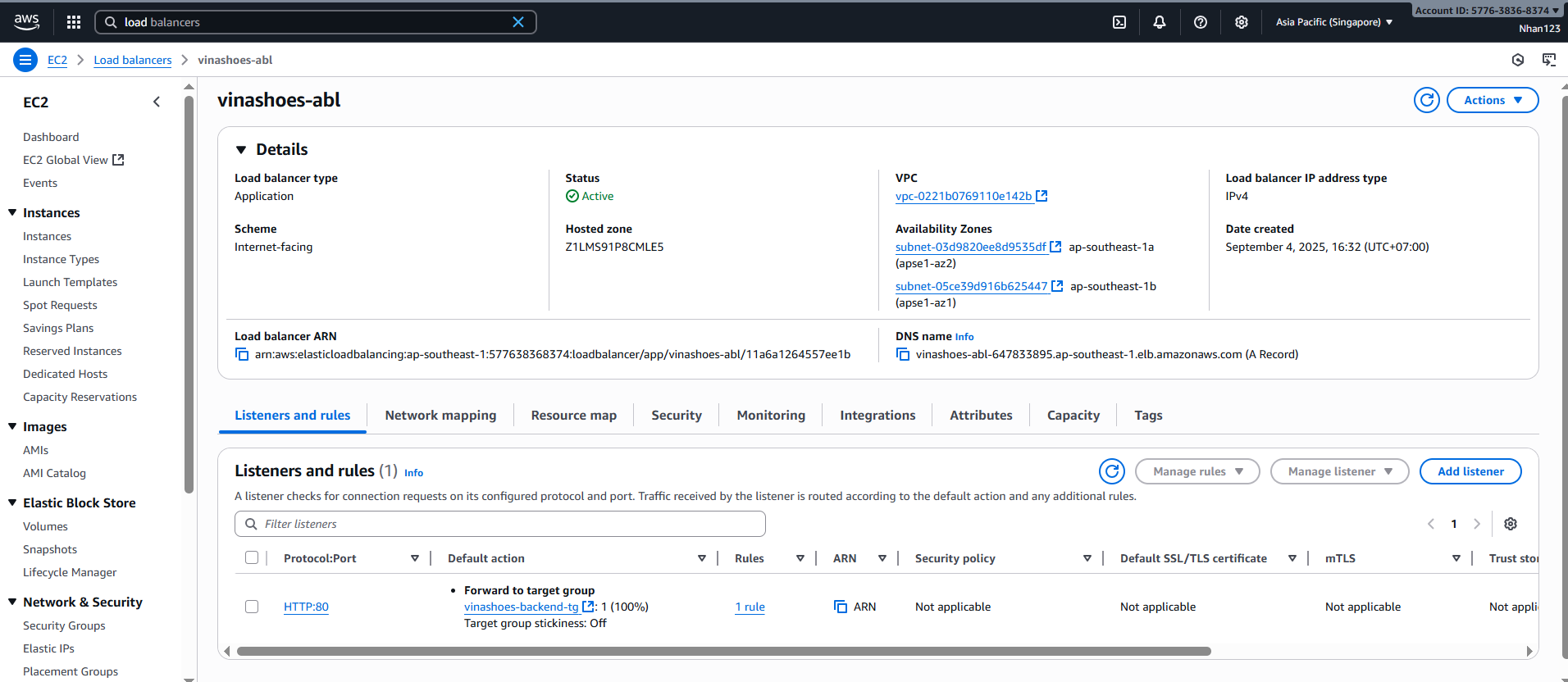
🚀 Quick Setup (5 phút):
- EC2 → Load Balancers → Create ALB
- Name:
vinashoes-alb, Internet-facing - Subnets: Chọn 2 public subnets
- Security Group: Allow HTTP (80) từ
0.0.0.0/0 - Target Group:
vinashoes-backend-tg, port3000, health check/health - ECS Service → Update → Add Load Balancer
Quick Steps:
- Create ALB: EC2 Console → Load Balancers → Create
- Create Target Group: Port 3000, health check
/health - Update ECS Service: Add load balancer integration
⚡ Load Balancer CLI Setup:
# Create target group
aws elbv2 create-target-group \
    --name vinashoes-backend-tg \
    --protocol HTTP \
    --port 3000 \
    --vpc-id vpc-xxx \
    --target-type ip \
    --health-check-path /health \
    --region ap-southeast-1

# Create load balancer (if not exists)
aws elbv2 create-load-balancer \
    --name vinashoes-alb \
    --subnets subnet-xxx subnet-yyy \
    --security-groups sg-xxx \
    --region ap-southeast-1
4. Verify Service Deployment
4.1. Check Service Status
- Service Overview:
- Status: ACTIVE
- Running count: 1/1
- Health status: HEALTHY
CLI Status Check:
# Check service status
aws ecs describe-services \
    --cluster vinashoes-cluster \
    --services vinashoes-backend \
    --region ap-southeast-1

# Check running tasks
aws ecs list-tasks \
    --cluster vinashoes-cluster \
    --service-name vinashoes-backend \
    --region ap-southeast-1

# Get task details
aws ecs describe-tasks \
    --cluster vinashoes-cluster \
    --tasks $(aws ecs list-tasks --cluster vinashoes-cluster --service-name vinashoes-backend --query 'taskArns[0]' --output text) \
    --region ap-southeast-1

4.2. Test Application (Quick)
Get ALB URL & Test:
# Get ALB DNS from EC2 Console
ALB_URL="http://vinashoes-alb-xxx.ap-southeast-1.elb.amazonaws.com"

# Test endpoints
curl $ALB_URL/health
curl $ALB_URL/api/products
Browser Test:
- Open:
http://vinashoes-alb-xxx.ap-southeast-1.elb.amazonaws.com/health - Should return:
{"status":"ok"}
🔍 Troubleshooting Commands:
# Check target group health
aws elbv2 describe-target-health \
    --target-group-arn $(aws elbv2 describe-target-groups --names vinashoes-backend-tg --query 'TargetGroups[0].TargetGroupArn' --output text) \
    --region ap-southeast-1

# View container logs
aws logs filter-log-events \
    --log-group-name /ecs/vinashoes-backend \
    --start-time $(date -d '10 minutes ago' +%s)000 \
    --region ap-southeast-1
5. Monitoring & Logs
5.1. CloudWatch Monitoring
-
Container Insights:
- AWS Console → CloudWatch → Container Insights
- Select cluster:
vinashoes-cluster
-
Key Metrics:
- CPU Utilization: < 70%
- Memory Utilization: < 85%
- Task Count: 2
- Healthy Host Count: 2
📊 Monitoring CLI:
# Get cluster metrics
aws cloudwatch get-metric-statistics \
    --namespace AWS/ECS \
    --metric-name CPUUtilization \
    --dimensions Name=ClusterName,Value=vinashoes-cluster Name=ServiceName,Value=vinashoes-backend \
    --start-time $(date -u -d '1 hour ago' +%Y-%m-%dT%H:%M:%S) \
    --end-time $(date -u +%Y-%m-%dT%H:%M:%S) \
    --period 300 \
    --statistics Average \
    --region ap-southeast-1

# Check service events
aws ecs describe-services \
    --cluster vinashoes-cluster \
    --services vinashoes-backend \
    --query 'services[0].events[:5]' \
    --region ap-southeast-1
5.2. CloudWatch Logs
- Access Logs:
- AWS Console → CloudWatch → Logs
- Log group:
/ecs/vinashoes-backend
📋 Log Management CLI:
# Stream real-time logs
aws logs tail /ecs/vinashoes-backend --follow --region ap-southeast-1

# Search for specific patterns
aws logs filter-log-events \
    --log-group-name /ecs/vinashoes-backend \
    --filter-pattern "ERROR" \
    --start-time $(date -d '1 hour ago' +%s)000 \
    --region ap-southeast-1

# Get recent logs
aws logs filter-log-events \
    --log-group-name /ecs/vinashoes-backend \
    --start-time $(date -d '30 minutes ago' +%s)000 \
    --region ap-southeast-1 \
    --query 'events[*].[logStreamName,message]' \
    --output table
6. Dọn dẹp tài nguyên
6.1. Xóa ECS Service
AWS CLI Commands:
# Update service to 0 desired tasks
aws ecs update-service --cluster vinashoes-cluster --service vinashoes-backend-service --desired-count 0 --region ap-southeast-1

# Delete service
aws ecs delete-service --cluster vinashoes-cluster --service vinashoes-backend-service --region ap-southeast-1
6.2. Xóa ECS Cluster
AWS CLI Commands:
# Delete cluster
aws ecs delete-cluster --cluster vinashoes-cluster --region ap-southeast-1
6.3. Xóa Task Definition
AWS CLI Commands:
# Deregister task definition
aws ecs deregister-task-definition --task-definition vinashoes-backend-task --region ap-southeast-1
6.4. Xóa Load Balancer và Target Group
AWS CLI Commands:
# Get ALB ARN
ALB_ARN=$(aws elbv2 describe-load-balancers --names vinashoes-alb --query 'LoadBalancers[0].LoadBalancerArn' --output text --region ap-southeast-1)

# Delete ALB
aws elbv2 delete-load-balancer --load-balancer-arn $ALB_ARN --region ap-southeast-1

# Get target group ARN
TG_ARN=$(aws elbv2 describe-target-groups --names vinashoes-backend-tg --query 'TargetGroups[0].TargetGroupArn' --output text --region ap-southeast-1)

# Delete target group
aws elbv2 delete-target-group --target-group-arn $TG_ARN --region ap-southeast-1
6.5. Xóa CloudWatch Log Groups
AWS CLI Commands:
# Delete log group
aws logs delete-log-group --log-group-name /ecs/vinashoes-backend-task --region ap-southeast-1
6.6. Xóa IAM Roles
AWS CLI Commands:
# Detach policies from task execution role
aws iam detach-role-policy --role-name ecsTaskExecutionRole --policy-arn arn:aws:iam::aws:policy/service-role/AmazonECSTaskExecutionRolePolicy
aws iam detach-role-policy --role-name ecsTaskExecutionRole --policy-arn arn:aws:iam::aws:policy/AmazonEC2ContainerRegistryReadOnly

# Delete task execution role
aws iam delete-role --role-name ecsTaskExecutionRole

# If task role exists, delete it too
aws iam detach-role-policy --role-name ecsTaskRole --policy-arn arn:aws:iam::aws:policy/service-role/AmazonECSTaskExecutionRolePolicy
aws iam delete-role --role-name ecsTaskRole
6.7. Kiểm tra sau khi dọn dẹp
Verification Commands:
# Verify cluster deleted
aws ecs describe-clusters --clusters vinashoes-cluster --region ap-southeast-1 || echo "Cluster deleted"

# Verify service deleted
aws ecs describe-services --cluster vinashoes-cluster --services vinashoes-backend-service --region ap-southeast-1 || echo "Service deleted"

# Verify ALB deleted
aws elbv2 describe-load-balancers --names vinashoes-alb --region ap-southeast-1 || echo "ALB deleted"
7. Phân tích chi phí
7.1. Bảng giá ECS Fargate
| Dịch vụ | Chi phí | Mô tả |
|---|---|---|
| ECS Fargate CPU | $0.04048/vCPU/giờ | Compute cho containers |
| ECS Fargate Memory | $0.004445/GB/giờ | Memory cho containers |
| Application Load Balancer | $0.0225/giờ | Load balancer |
| Data Transfer Out | $0.008/GB | Outbound data transfer |
7.2. Phân tích chi phí
Chi phí hàng tháng ước tính:
- ECS Fargate CPU: 1 vCPU × 730 giờ × $0.04048 = $29.55/tháng
- ECS Fargate Memory: 3 GB × 730 giờ × $0.004445 = $9.73/tháng
- ALB: 730 giờ × $0.0225 = $16.43/tháng
- Data Transfer: 10 GB × $0.008 = $0.08/tháng
- Tổng chi phí: $55.79/tháng
7.3. Lợi ích và ROI
Lợi ích của ECS Fargate:
- Serverless: Không cần quản lý EC2 instances
- Auto Scaling: Tự động scale theo nhu cầu
- High Availability: Triển khai multi-AZ
- Security: Containers được isolate
- Integration: Tích hợp native với AWS services
Tính toán ROI:
- Chi phí ECS Fargate: $55.79/tháng
- Giá trị tương đương: EC2 t3.medium ($30/tháng) + DevOps overhead ($50/tháng)
- Tiết kiệm: $24.21/tháng so với self-managed
- ROI: ($24.21 / $55.79) × 100% ≈ 43%
7.4. Giám sát chi phí
AWS Cost Explorer Commands:
# Get ECS costs for last month
aws ce get-cost-and-usage \
    --time-period Start=2024-01-01,End=2024-02-01 \
    --granularity MONTHLY \
    --metrics BlendedCost \
    --group-by Type=DIMENSION,Key=SERVICE \
    --filter '{
        "Dimensions": {
            "Key": "SERVICE",
            "Values": ["Amazon Elastic Container Service"]
        }
    }' \
    --region us-east-1
CloudWatch Monitoring:
# Monitor ECS CPU utilization
aws cloudwatch get-metric-statistics \
    --namespace AWS/ECS \
    --metric-name CPUUtilization \
    --dimensions Name=ClusterName,Value=vinashoes-cluster Name=ServiceName,Value=vinashoes-backend-service \
    --start-time 2024-01-01T00:00:00Z \
    --end-time 2024-02-01T00:00:00Z \
    --period 86400 \
    --statistics Average \
    --region ap-southeast-1
7.5. Chiến lược tối ưu hóa chi phí
Fargate Optimization:
- Chọn đúng tỷ lệ CPU/Memory
- Sử dụng Fargate Spot nếu có sẵn
- Auto scaling để tránh over-provisioning
ALB Optimization:
- Sử dụng connection draining
- Tối ưu hóa health checks
- Xem xét API Gateway cho internal APIs
Monitoring & Alerts:
- Thiết lập billing alerts
- Giám sát resource utilization
- Sử dụng Cost Allocation Tags
🔧 Troubleshooting (Quick Fixes)
Fix Health Status “Unknown”
# Test health endpoint works
curl -UseBasicParsing http://18.143.162.50:3000/health
# If returns {"status":"ok"} → Container is healthy, just missing health check config
⚡ Quick Answer: Health status “Unknown” KHÔNG ảnh hưởng đến API Gateway setup. Có thể tiếp tục Task 10 ngay!
Common Security Group Issues
ALB Security Group:
- Inbound: HTTP (80) từ
0.0.0.0/0
ECS Security Group:
- Inbound: Port 3000 từ ALB Security Group
✅ Kết quả (Task 9 Complete)
ECS Fargate với Load Balancer setup thành công:
- ✅ ECS Cluster:
vinashoes-clusterrunning - ✅ ECS Service: 1 task healthy
- ✅ Load Balancer: Public endpoint available
- ✅ Health Check:
/healthendpoint working
Test URLs:
# ALB endpoint (copy từ EC2 Console)
http://vinashoes-alb-xxx.ap-southeast-1.elb.amazonaws.com/health
Next step : Task 10 - API Gateway với custom domain api.vinashoes.org